
Google Sheets Updates 2026: New Features Explained
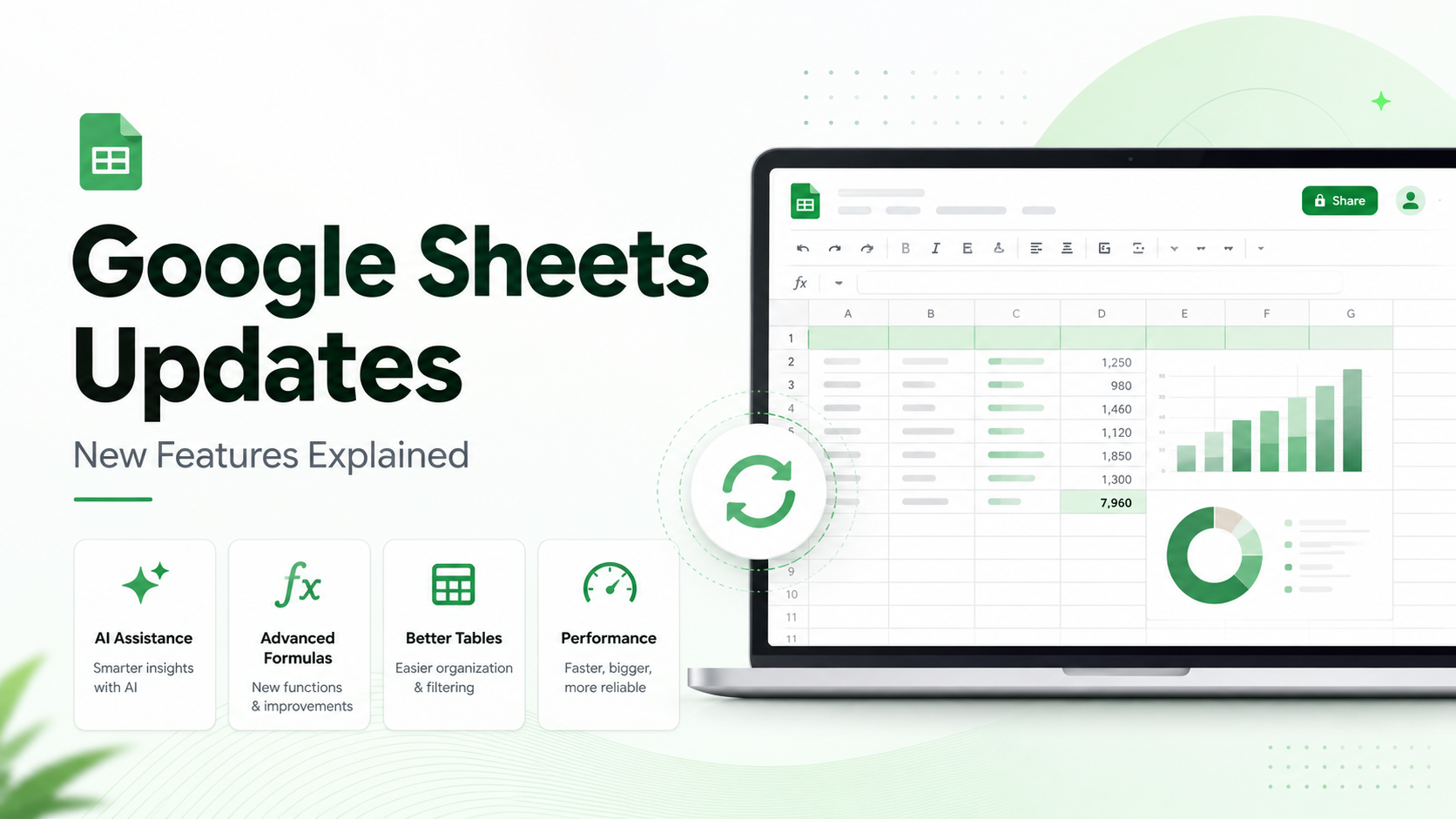
Google Sheets is no longer just a simple spreadsheet tool for entering numbers, creating lists, or tracking basic tasks. The latest Google Sheets updates are making spreadsheets smarter, faster, and easier to use for students, business owners, marketers, analysts, and everyday users. From AI-powered data entry to faster performance and improved formula handling, Google Sheets is becoming a more powerful workspace for organizing and understanding data.
In simple words, the most important Google Sheets updates in 2026 focus on three things: saving time, handling larger data, and making spreadsheet work easier for non-technical users. With Gemini features, users can create tables, fill data, build spreadsheet structures, analyze information, and format content with less manual effort.
This guide explains the latest Google Sheets updates, what they mean, and how beginners can use them in daily work.
Why Google Sheets Updates Matter
Google Sheets is widely used by individuals, teams, businesses, schools, and organizations because it is easy to access, share, and collaborate on. People use it for budgets, content calendars, project trackers, sales reports, inventory lists, customer data, marketing plans, and dashboards software tools for small business.
However, as spreadsheet work becomes more advanced, users need better speed, smarter tools, and easier ways to manage data. Many users do not want to spend hours writing formulas, cleaning messy data, or manually building reports. This is why recent Google Sheets updates are important.
These updates are designed to make Sheets more helpful for real work. Instead of only entering data manually, users can now rely more on AI assistance, automation, better performance, and improved data analysis features.
Quick Overview of the Latest Google Sheets Updates
Here is a simple summary of the most useful updates:
| Google Sheets Update | What It Helps With |
|---|---|
| Gemini in Sheets | Build and edit spreadsheets using natural language |
| Fill with Gemini | Fill cells faster using AI suggestions |
| Convert to Table | Turn pasted text into organized tables |
| Faster performance | Open, filter, and format large sheets more quickly |
| Doubled cell limit beta | Test larger spreadsheets with up to 20 million cells |
| Formula improvements | Better error visibility and more reliable calculations |
| SHEET and SHEETS functions | Identify sheet numbers and count sheets in a file |
| Anomaly detection | Find unusual patterns in Connected Sheets data |
These updates show that Google Sheets is moving toward smarter, AI-assisted spreadsheet work.
Gemini in Google Sheets
One of the biggest Google Sheets updates is the improved Gemini experience inside Sheets. Gemini can help users build and edit spreadsheets using simple prompts. This means users can describe what they want, and Gemini can help create a structure, add formulas, organize data, or build visual elements Gemini in Google Sheets.
For example, a small business owner can ask Gemini to create a monthly expense tracker. A marketer can ask for a campaign performance table. A student can ask for a study schedule. A manager can ask for a project tracker with status columns and deadlines.
This update is useful because many people know what they want from a spreadsheet but do not always know how to build it properly. Gemini helps reduce the gap between idea and execution.
Fill with Gemini for Faster Data Entry
Fill with Gemini is another useful update for people who work with repeated data entry. Instead of manually filling many cells one by one, users can use Gemini to understand the pattern and complete the column or selected range.
For example, if you have a list of customer feedback comments, Gemini may help categorize them. If you have product names, it may help generate descriptions or fill missing details based on context. If you are organizing business data, it can help complete repetitive fields faster.
This can save time for users who manage spreadsheets regularly. It is especially helpful for small business owners, marketers, virtual assistants, content planners, and operations teams.
Convert Unformatted Text Into Tables
Many people copy text from emails, documents, websites, forms, or notes and paste it into Google Sheets. The problem is that pasted text is often messy. It may include bullet points, paragraphs, or unstructured information that needs manual cleaning.
The new “Convert to Table” feature with Gemini helps turn unformatted pasted text into a clean table. This makes it easier to organize information without spending time fixing rows and columns manually.
For example, if you paste a list of tasks from a meeting note, Google Sheets can help convert it into a table with task names, owners, deadlines, and status. If you paste product details, it can help organize them into columns.
This update is useful for anyone who regularly turns notes or raw text into structured data.
Faster Performance for Large Spreadsheets
Another important update is improved performance in Google Sheets, especially for large files. Large spreadsheets can sometimes become slow when opening, filtering, formatting, or analyzing data.
The latest performance improvements make Sheets faster when working with large datasets. This matters for users who manage reports, sales data, marketing performance sheets, inventory lists, finance sheets, or operational dashboards Google Sheets performance improvements.
For normal users, this means less waiting and smoother work. For businesses, it means teams can manage bigger files with fewer delays.
Doubled Cell Limit Beta
Google Sheets has also introduced a beta program for larger spreadsheet capacity. The cell limit beta increases capacity from 10 million cells to 20 million cells for eligible users or organizations.
This is useful for teams that handle large datasets but still want to work inside Google Sheets instead of moving everything to another tool. It can help with larger imports, reporting sheets, data tracking, and business operations.
However, beginners should remember that a larger sheet does not always mean a better sheet. If a spreadsheet becomes too heavy, it is still important to organize data properly, separate raw data from reports, and avoid unnecessary formulas.
Better Formula Control and Error Visibility
Formulas are powerful, but they can also create confusion when errors are hidden or hard to understand. Google Sheets has improved formula behavior to make errors more visible and calculations more reliable.
This update helps users who work with financial formulas, statistical functions, imported spreadsheets, and complex calculations. Better error visibility means users can identify problems earlier instead of trusting incorrect results.
For example, if a formula depends on a broken link, invalid value, or incorrect input, better error handling can help users understand the issue more clearly.
This is especially useful for business reports, finance sheets, analytics dashboards, and academic work.
New SHEET and SHEETS Functions
Google Sheets also added two useful functions: SHEET and SHEETS.
The SHEET function can help identify the sheet number of a reference. The SHEETS function can count the number of sheets in a spreadsheet file.
These may look like small updates, but they can be helpful in larger workbooks with multiple tabs. For example, if you manage a workbook with separate sheets for sales, expenses, reports, and dashboards, these functions can help with structure tracking and formula management.
They are also useful for advanced users who build templates, dashboards, or automated spreadsheet systems.
Anomaly Detection in Connected Sheets
For users working with BigQuery data through Connected Sheets, anomaly detection is a powerful update. It helps identify unusual patterns, irregular data points, or outliers in time-based data.
This can be useful for businesses that track sales, website performance, customer behavior, product demand, finance trends, or operational data. Instead of manually checking large data tables, users can identify unusual changes more easily.
For example, if sales suddenly drop, traffic spikes, or expenses increase unexpectedly, anomaly detection can help highlight the issue for further review.
This update is more advanced than basic spreadsheet features, but it shows how Google Sheets is becoming stronger for data analysis.
How These Updates Help Small Businesses
Small businesses can benefit from these Google Sheets updates in many practical ways. A business owner can use Gemini to create a budget tracker, sales report, customer list, or inventory sheet. A marketing team can use Fill with Gemini to categorize campaign data. A manager can use Convert to Table to turn meeting notes into task lists.
Faster performance also helps businesses that work with large reports. Better formulas reduce the risk of wrong calculations. Anomaly detection can help advanced teams find unusual business patterns.
For small businesses that cannot afford expensive tools, Google Sheets remains a flexible and useful option.
How These Updates Help Students and Beginners
Students and beginners can also use the latest Google Sheets updates without needing advanced spreadsheet knowledge. Gemini can help create study plans, assignment trackers, budget sheets, and project schedules.
Beginners who struggle with formulas can use AI assistance to build tables and organize information. Convert to Table can help turn messy notes into structured study material. Faster performance makes Sheets easier to use even when files become larger.
These updates make Google Sheets more beginner-friendly because users can focus more on the task and less on technical setup.
How These Updates Help Digital Marketers
Digital marketers often use Google Sheets for keyword research, content calendars, ad tracking, SEO audits, campaign reports, and lead management. The new updates can make these tasks easier digital marketing career guide.
For example, Gemini can help build a campaign tracker. Fill with Gemini can categorize keywords or content ideas. Convert to Table can organize pasted campaign notes. Faster performance can help with large SEO sheets or reporting files.
Marketers can also use Sheets to manage social media planning, blog schedules, backlink tracking, and client reports.
Should You Use Gemini Features in Google Sheets?
Gemini features can be very helpful, but users should still review the output carefully. AI can speed up spreadsheet work, but it should not replace human checking, especially when working with finance, business decisions, client reports, or important data.
The best way to use Gemini is as an assistant. Let it build structure, suggest formulas, organize data, or fill repetitive fields. Then review the sheet, check formulas, and confirm that the data is correct.
This approach gives you speed without losing accuracy.
Tips to Use Google Sheets Updates Better
To get better results from the latest Google Sheets updates, keep your spreadsheets clean and organized. Use clear column names, avoid mixing raw data with dashboards, and keep formula columns separate from manual entry columns.
When using Gemini, write clear prompts. Instead of saying “make a sheet,” explain what you need. For example, say: “Create a monthly budget tracker with income, expenses, category, date, payment method, and monthly summary.”
Also review AI-generated tables and formulas before using them for important decisions. Good spreadsheet habits still matter.
Common Mistakes to Avoid
One common mistake is depending too much on AI without checking the final result. Gemini can help, but users should always verify important data.
Another mistake is creating very large spreadsheets without proper structure. Even with better performance and higher cell limits, messy spreadsheets can still become difficult to manage.
Users should also avoid putting everything into one tab. It is better to separate raw data, cleaned data, and dashboard views.
Finally, do not ignore formula errors. The improved formula visibility is useful only if users review and fix the problems.
Final Thoughts
The latest Google Sheets updates show that Google is making Sheets faster, smarter, and more useful for everyday work. Gemini in Sheets, Fill with Gemini, Convert to Table, faster performance, better formulas, new functions, and anomaly detection all make spreadsheet work easier for different types of users.
For beginners, these updates make Google Sheets less confusing. For businesses, they save time and improve reporting. For marketers and analysts, they make data organization and analysis more efficient.
If you use spreadsheets for planning, tracking, reporting, or business operations, these Google Sheets updates are worth understanding. They can help you work faster, reduce manual effort, and create better organized data.
FAQs
What are the latest Google Sheets updates?
The latest Google Sheets updates include Gemini-powered spreadsheet creation, Fill with Gemini, Convert to Table, faster large-sheet performance, improved formula visibility, new SHEET and SHEETS functions, and anomaly detection in Connected Sheets.
What is Gemini in Google Sheets?
Gemini in Google Sheets is an AI feature that helps users create, edit, organize, and analyze spreadsheets using natural language prompts.
Can Google Sheets handle larger files now?
Google Sheets has improved performance for large spreadsheets, and a beta program is available for increasing spreadsheet capacity up to 20 million cells for eligible users.
What is Fill with Gemini in Google Sheets?
Fill with Gemini is an AI-powered feature that helps fill spreadsheet cells based on context, patterns, or prompts. It is useful for repetitive data entry and data preparation.
What does Convert to Table do in Google Sheets?
Convert to Table helps turn pasted unstructured text, such as lists or notes, into organized table format using Gemini.
Are Google Sheets updates useful for beginners?
Yes, these updates are useful for beginners because they make it easier to create tables, organize data, use formulas, and manage spreadsheets with less manual effort.







Essentially, the SHEET and SHEETS functions are useless.
…Google developers haven’t publicized it, but a useful “sheet” parameter of the CELL function already works (and is documented ℹ: https://support.google.com/docs/answer/3267071 ).
To get the 🔤 name of the current sheet, simply enter the following in the formula field:
=CELL(“sheet”, A1)
p.s.: I would also like to be able to get a list of all the sheet names in a table (that would be very useful), but for some reason the developers haven’t thought of that 🛌.